Wednesday, April 27, 2016

How to use Star in Gmail Inbox

Have you ever thought about the blank stars appear to the left of the sender’s name in your inbox is used for? In Google Mail, you can use stars for easily classify a message to indicate that you need to reply to them later or any purpose you want, it means you highlight the message. Firstly, if you haven not had Gmail yet, let's create one with gmail email login.

To star a message, just simply click in the star icon in the right of square check box in the message you want. Yellow star is set by default of every Inbox. If you are reading the message and want to star it in email view, you can click the star icon in upper right corner of the message. And while writing a new message: click "more options" (the arrow icon) in the bottom right corner of compose window, click Label, and then select Add star.

But, you may need more than one star icon to highlight your messages, for multiple purpose, such as, you want yellow star for message for business, other color for friends, other star for family, some special icon for urgent message... Gmail allows you to use multiple types of stars to indicate different types of messages.

Firstly, open your inbox then click the gear in the top right of you inbox, choose Settings, in General, scroll down to find section "Stars"
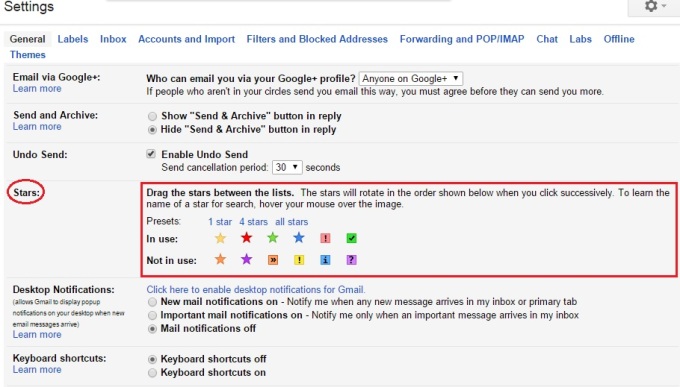

"In use" row, all the stars you used is displayed, to have more stars to use, you can click and drag stars from "not in use" row and drop the star you choose in "in use" row. The order of star appears when you click in star icon will be the same with the order in "in use" row. For example, as the images above, the order will be: yellow star -> red star -> green star -> red bang -> green check. Click the star icon in you inbox repeatly until you find the star you want to display.

To see all your starred messages, click Starred on the left side of your Gmail, under Inbox, or search for starred messages by typing "is:starred" in the search box. For finding a particular type of star, you can type "has:" with the star's name (e.g. has:yellow-star) in search box.

Messages that you marked with a star will also appear in your Primary tab, but if you don't want starred messages is included in Primary tabs of Inbox, you can click the "plus" icon in the right of your tabs (often next to "Promotions" tab) and uncheck the box next to “Include starred in Primary", don't forger to click "save".

Star messages can be another way that help you classify you inbox instead of using label or folder (about label and folder, I will write an article later). It's fast and make you inbox more colorful and easy to see. Let's try and rule it!!

Sunday, April 24, 2016

How to recover Gmail password

Have you ever forgot your password? I think you have. There are many reason make it happen, for example, you use "remember me" when you sign in your account, and you rarely have to type it so when you sign in your account in a new device, you forget; or you change your password for a new strong password, but you don't note it down, next time, you forget; or someone can access your account and change your password (let's see how to create a strong password to protect your account)...

Let's recover your password with forgot gmail password to get it back with the step by step tutorial. It's a common problem that everyone can meet.

Notes: You will need the phone number or the email address you fill in the registration form when you sign up that account so that, Google Mail will send your verification code to recover your password.

Wednesday, April 20, 2016

Recommended App for Gmail user

Gmail App is an easy way to get your messages instantly via push notifications, read and respond online & offline, find messages quickly to saves your time and keeps your messages safe. Nowadays, cellphone is a necessary thing that modern people use everyday. We are all know that use smartphone only for calling, sending messages, playing games is waste, why don't use some app to boost your work? Let's see which gmail app is the best for your phone to control your emails more effectively.

Monday, April 18, 2016

What is Google Drive?

Let's create your Gmail address and own 15 Gb free storage for any types of files in Google Drive here!

If you are using any online storage like Mediafire, Mega or Dropbox..., you may know how Google Drive works. Like other online storage, Google Drive is the place where you can put every document including videos, photos, Google Docs, PDFs... to save them for yourself or send other people a link of the files so that they can download and see these files. But unlike other online storage that you have to download them then access in your computer, with Google Drive, you can watch video, read doccument, listen to the sound files right in web browser without download the files. If you have a Google account, you even can save that files to your Drive storage then read, edit them in web browser.

Google Drive can sync files from all your devices in the same account and allows you to access them everywhere no matter what devices you using, as long as you can sign in your Google Account. Google Drive offers 15 Gb of free storage space and paid plans which start at 2.49 USD/month that gets you 25 Gb of storage or 100 Gb for 4.99 USD/month or even 1 Tb storage for 49.99 USD/month. What a great!

Google Drive could become the storage for all of your documents on the cloud. It automatically becomes the home for all your Google Docs which located under My Drive and any shared documents are arranded under Shared with me, obviously if you allow. Document that you create with Google Drive is saved forever unless you delete it.


You can install the Google Drive app for your devices (phone, tablet or computer), and sync all your files (in computer, by copy and paste files in Google Drive folder), access them in smartphone/tablet/computer anywhere with the Google Drive app available in Android/Apple/Windows Phone Apps Store or any web browser. Google Drive is all about uploading and storing files in the cloud, just dropping/browsing your file to store or edit them online collaboratively, photos, videos, docs... Google Drive allows you to edit them no matter what kind of that document is.

One account to access all Google products and one of them is a free online storage that's easy to use. Let's create your Gmail - as known as Google account to use the most convenient email service.

Friday, April 15, 2016

Inbox by Gmail - you may not know it

Inbox by Gmail is now open to everyone, it’s a completely different type of Gmail Inbox, designed to focus on what really matters. You've used Gmail for a long tim, but you may not know about inbox by gmail - Inbox is not Gmail : it’s a completely different type of Gmail Inbox, designed to focus on what really matters. In an effort to give us a little more control over email overload, which tends to overwhelm many of our inboxes, Google introduced Inbox, it's open to everyone now, no invitation required! Let's check it out!!

Sunday, April 10, 2016

What is Google Hangouts


What is Google Hangouts? It's a products of Google that allows anyone with a computer, tablet or smartphone and a Google account to communicate using audio, video or message for FREE through the internet. No matter where you are, as long as you can connect to the internet, you can hold important meeting, remote interview, send chat messages, send files... with multiple people around the world at the same time. All you need is a computer, tablet, smartphone that has camera/webcam, speaker and microphone and of course, you Google account. If you don't have one, let's create yours with gmail email login.

In August 24, 2005, Google introduce Google Talk (also known as gtalk or gmessage) - an instant messaging service that provides both text and voice communication. The in June 2012 Google announced that they were planning to revamp the chat experience by merging Google Talk with Hangouts and Google Messenger to reduce confusion and fragmentation and they stop supporting XMPP servers and recommend Google users to use Hangouts instead.

By offering the option of a Google Hangout, you are benefitting from a range of features that will help you easily connect to other people. Google Hangouts enables both one-and-one chats and group chats with up to ten people at a time. You can access Google Hangouts via desktop computers, Android, iOS, Windows Phone mobile devices everywhere, just simply download the app in Store for phone and tablet, or web-browser extension, or simply use Hangouts in your Gmail tab. Google Hangouts users can share documents, images, Youtube videos with other users and it also offeers a "Hangouts on Air" feature for broadcasting live video conversations that are accessible to anyone with a web browser.

Unlike some similar services, Google Hangouts focuses more in "face-to-face-to-face" group interaction as opposed to one-on-one video chats, and utilizes sophisticated technology to seamlessly switch the focus to the person currently chatting. You also can draw a picture and send it to your friends, and your friends can edit it also. It may become a fun features for your group chat.

Google Hangouts is a chance for you to meet celebrities. You can chat with Tyra Banks, listen to her story about life, beauty, modeling or her answers to fan's question. You can communicate with Brab Pitt, Ellen DeGeneres, Aziz Ansari, and Randy Jackson hung out for the Make It Right Foundation. Or if you are a fan of Hallyu wave, your Korean favorite singer may appear in a worldwide program name "After School Club" from Arirang channel and chat with several fans through Google Hangouts. You can play game with them, give them a request and you may be received a gift with their signature. You can meet many other celebrities, for example David Beckham, Tiger Wood, the Dalai Lama... Google Hangouts is also used by prominent brands such as Cadbury, ASOS, Dell, Coca-Cola, Topman and Google itself, as well as a huge number of smaller companies and individuals.

With Google Hangouts, geographical distance is not a big problems, even if your friend live in... Mars, if he has internet and Google Account, you two can talk and chat in Google Hangouts. Join it today!!

Wednesday, April 6, 2016

Cannot Sign in Gmail

Having problems when signing in to your Gmail account? Follow our tutorial to get rid of it in gmail sign in problems post.

Solutions for all the most common problems are here in gmail email login! Sometimes you have problems with your email and you cannot solve it, come to us and we will fix it together!!

The reason why you cannot sign in might be:
- Unsecure connection
- Wrong password
- Wrong username
- Proxy
- Web browser problems
- Cookies